
All services with one user login
Use your Business Account credentials to access any WithSecure service. You will be automatically logged in, so there’s no need to sign in again.
Elements Security Center
Elements Security Center is a user portal for WithSecure's cloud-based platform, which provides a full range of cyber security capabilities, serving your end-to-end security management needs from a single portal.
eService Portal
The WithSecure eService Portal is a support case management portal that allows customers with advanced or premium support contracts to submit and follow up on their support tickets and access self-service options or knowledge bases.
Partner Portal
The Partner Portal is an online service that allows WithSecure Partners acess to the tools that help them sell our solutions. See all your customers in one place, calculate offers and send orders easily through the Portal.
Frequently Asked Questions
Use a different browser or a private window to log in if you have trouble. Check that you are using your Business Account username and password.
To reset your password, click on the Forgot your password link on the login page.
Log in to the portals with your Business Account credentials. Your email address is your username.
In case of breaking or losing device which served as authentication method for your account, please follow this guide.
Latest announcements
-
New roles for better access control in Elements
Read more
We are introducing new Elements roles. New roles make it easier to manage access in the Elements portal.
- Endpoints: Reading all – read access to servers, workstations and mobile devices. Does not grant permission to Device or profile management, Patch management, Device security posture, Software reputation, Security Events, Home/Endpoint protection, Reports.
- Endpoints: Editing all – editing access to servers, workstations, and mobile devices. Grants permission to security information, including device status, dashboard, security events, and software updates. Allows executing security operations such as removing or isolating devices and assigning profiles. Does not grant permission to manage profiles.
- Endpoints: Editing non-servers – edit access to workstations and mobile devices; read access to servers. Grants access to workstation and mobile security information, including device status, dashboards, security events, and software updates. Allows security operations on workstations and mobile devices, such as removing or isolating them and assigning profiles. Does not permit profile management.
- Endpoints: Editing servers – edit access to servers; read access to workstations and mobile devices. Grants access to server security information, including device status, dashboards, security events, and software updates. Allows security operations on servers, such as removing or isolating them and assigning profiles. Does not permit profile management.
- Endpoints: Organizing non-servers – Edit access to non-server devices, excluding remote operations. Includes actions that affect device security configuration (e.g., profile assignment) or metadata (e.g., alias, label, asset group), but not actions that execute on the device itself. Also includes read access to devices, security events, profiles, and reports for servers, workstations, and mobile devices.
- Endpoints: Organizing servers – edit access to server devices, excluding remote operations. Includes actions that affect device security configuration (e.g., profile assignment) or metadata (e.g., alias, label, asset group), but not actions that execute on the device itself. Also includes read access to devices, security events, profiles, and reports for servers, workstations, and mobile devices.
- Endpoints: Non-server remote operations – allows execution of remote security operations on non-servers, such as removing or isolating devices. Includes read access to devices, security events, profiles, and reports for servers, workstations, and mobile devices.
- Endpoints: Server remote operations – allows execution of remote security operations on servers, such as removing or isolating devices. Includes read access to devices, security events, profiles, and reports for servers, workstations, and mobile devices.
- Profiles: Editing for non-servers – allows management of security configurations and profiles for workstations and mobile devices. Does not permit access to server profiles.
- Profiles: Editing for servers – allows management of security configurations and profiles for servers. Does not permit access to workstation or mobile device profiles.
- Profile assignment rules: Editing – allows management of profile assignment rules.
- Security events: Managing – grants permission to take action on security events (e.g., acknowledging or allowing a website URL). Includes read access to devices, security events, profiles, and reports for servers, workstations, and mobile devices.
- Reports: Managing – allows managing reports. Includes read access to devices, security events, profiles, and reports for servers, workstations, and mobile devices.
-
Why incident response matters?
Read more
When a cyber incident affects your business, you need to decide which systems can keep running and what is safe to restore. You also need to understand whether sensitive information has been exposed and whether the attacker still has access. Those decisions depend on a reliable picture of what happened.
Digital forensics and incident response (DFIR) provides the expertise to establish those facts and act on them.Experienced investigators and responders help contain the incident, guide recovery and address the weaknesses that allowed the attack. For your organization, this can mean less disruption, better-informed decisions and less pressure on internal teams.
Building on your existing security investment
Endpoint detection and response (EDR) provides visibility into device activity and tools to investigate and contain threats. Managed detection and response (MDR) adds experts who monitor, investigate and respond within an agreed scope.
These capabilities are valuable during an incident. A dedicated DFIR team builds on that work when the situation requires deeper forensic investigation, coordination across a wider environment or additional recovery support. Investigators bring together evidence from endpoints, identities, cloud services and other systems to establish the extent of the compromise and guide the next decisions.
What DFIR can uncover
The following illustrative scenarios show why that wider investigation matters.
The fraudulent invoice inside a trusted conversation: A finance team receives new bank details within an existing supplier email conversation. The payment looks legitimate until the supplier calls to ask where it is. DFIR investigators uncover a compromised mailbox that the attacker used to monitor payment discussions. They identify affected conversations and hidden forwarding rules, helping the company secure its accounts, support bank enquiries and assess what information was exposed.
The ransomware incident that started days before the outage: EDR detects ransomware and isolates the affected server. Investigation reveals earlier use of a compromised administrator account and additional access to a backup server. DFIR responders identify the remaining access routes, assess evidence of data theft and help determine which backups can be trusted. Recovery can then address the wider compromise, reducing the risk of reconnecting systems while the attacker retains access.
The quiet intrusion targeting valuable information: Business continues normally while an intruder spends weeks accessing sensitive project files. An unusual sign-in prompts an investigation that connects activity across workstations and cloud services. DFIR specialists reconstruct the timeline, uncover mechanisms used to maintain access and assess evidence of data collection and transfer. The organization gains a clearer understanding of the exposure and a plan to remove the intruder.
Evidence for decisions, reporting and recovery
Even after an attacker has caused damage, effective response can prevent further loss and protect unaffected operations. Experienced responders help prioritize actions according to business impact while preserving evidence needed for the investigation.
Clear reporting gives management a factual basis for decisions. It also supports cyber insurance claims and regulatory reporting through documented timelines, findings on affected systems and data, and records of response actions. Legal and compliance teams can use these findings to assess notification obligations and prepare reports under NIS2 and GDPR, where applicable. Reports distinguish confirmed findings from assessments and explain any remaining uncertainty.
Expertise available when you need it
At WithSecure, our incident response team is completely technology agnostic. We work across vendors, platforms and environments, alongside your existing teams and providers. Our investigations cover business email compromise, ransomware, cyber espionage and insider threats. Or any other needs.
A WithSecure DFIR retainer provides 24/7, SLA-backed access to specialists, with services available on demand at pre-agreed rates and no requirement to pre-purchase investigation days. Your organization has an established contact and activation process, reducing the time spent arranging expert support during an incident. Internal teams gain additional capacity when demands on them are greatest.
We also help you prepare through custom tabletop exercises, runbooks and plan reviews, covering incident response, crisis management and recovery. Each engagement reflects your environment, business priorities and team responsibilities. Your people can practise difficult decisions, test escalation routes and address gaps before a real incident puts those arrangements under pressure.
The result is an organization better prepared to understand an incident, make informed decisions and restore operations with confidence grounded in evidence.
Read more about our Incident response services from here:
-
New Feature: Onboarding Assistant in Elements Security Center
Read more
We have introduced the Onboarding Assistant in Elements Security Center, a built-in virtual assistant that guides new users through their first steps in WithSecure™ Elements. The assistant appears on first login and leads you through the setup actions needed for the products and services your organization has purchased.
Until now, getting started often relied on hands-on help from a partner or a WithSecure solutions engineer. The Onboarding Assistant gives every customer the same clear, step-by-step path to a working setup, so you reach your first security outcomes faster and with less manual support.
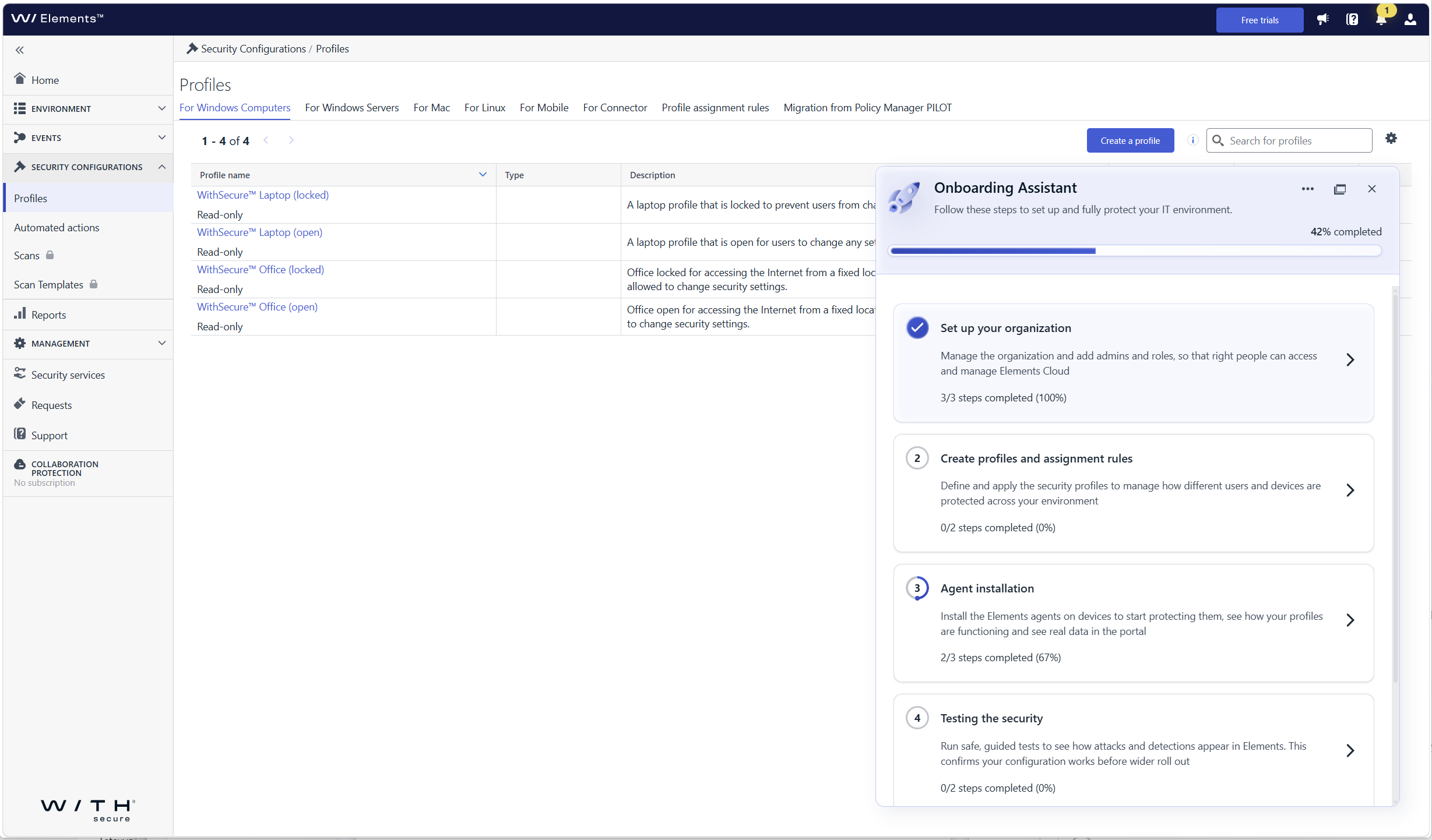
What’s new
- Guided first login: the assistant opens automatically when you log in to Elements Security Center for the first time and walks you through each required onboarding step
- Organization onboarding: set up your organization, including users and single sign-on (SSO)
- Device and profile onboarding: get your devices connected so that they are protected and visible in Elements
- Steps tailored to your subscriptions: you only see the steps that are relevant to the Elements products and services your company has, so there is nothing extra to sort through
- Help where you need it: each step includes contextual guidance, links to documentation, and prompts for the next action
Who sees the assistant
The assistant is shown to the first user who logs in with permission to manage users and access rights in the organization. This person can hand over product setup to other users by giving them access to Elements Security Center, so user and product administration can be split. In this release, the assistant is shown to customer users only, not to partner users with access to several companies.
How to get started
Log in to Elements Security Center. The Onboarding Assistant opens on the right side of the portal and shows your onboarding progress. Select a step to see what needs to be done and follow the guidance until all the steps relevant to your subscriptions are completed.