
-
Elements Security Center Common Features – 2026-10-09 Update
Read more
Onboarding Assistant
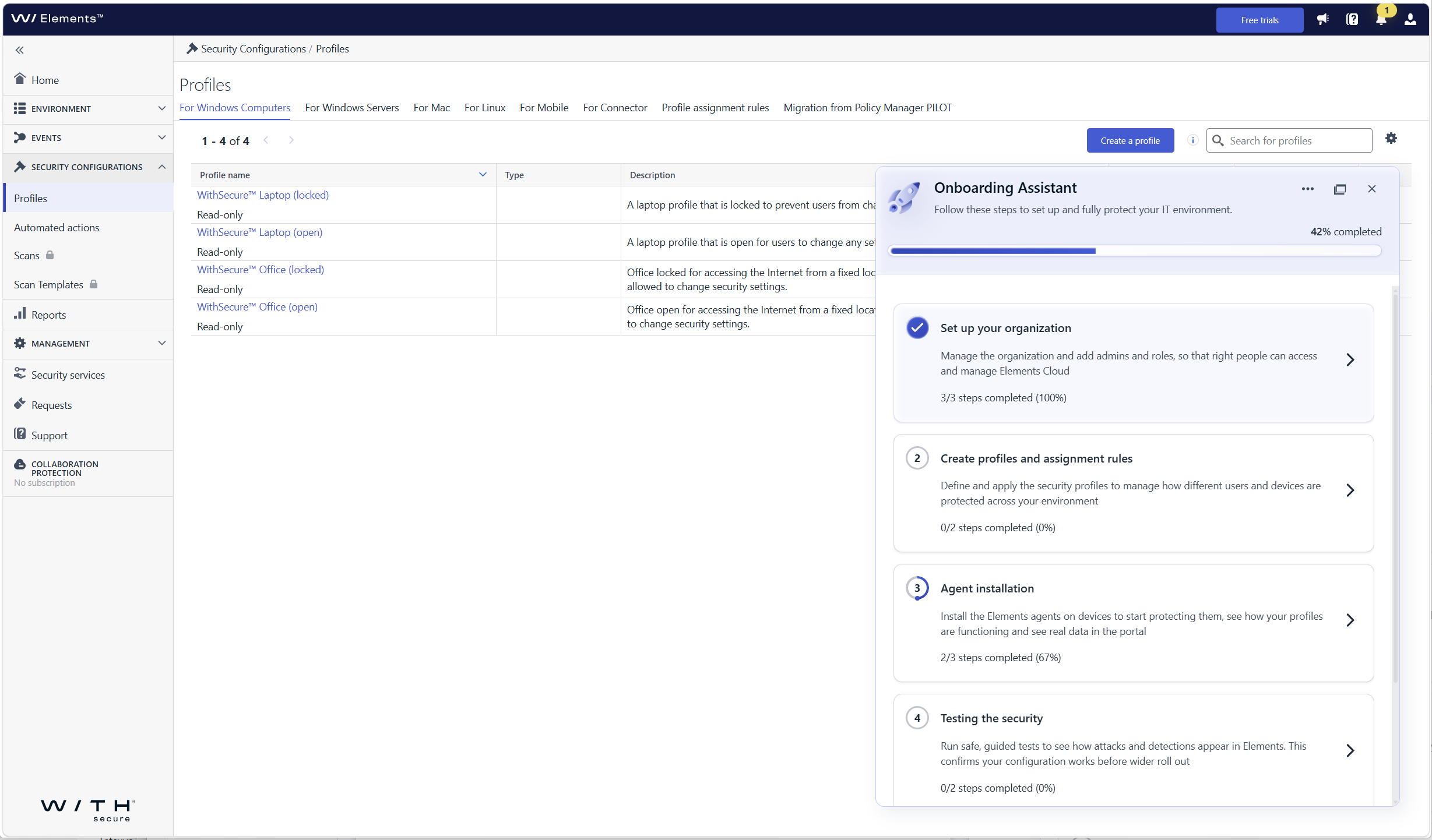
We have introduced the Onboarding Assistant in Elements Security Center, a built-in virtual assistant that guides new users through their first steps in WithSecure™ Elements. The assistant appears on first login and leads you through the setup actions needed for the products and services your organization has purchased.
Check separate announcement for more info: New Feature: Onboarding Assistant in Elements Security Center
-
Elements Security Center Common Features – 2026-10-08 Update
Read more
Updated and New Roles for Response and Automated Actions
Response roles renamed to “Response & automated actions”
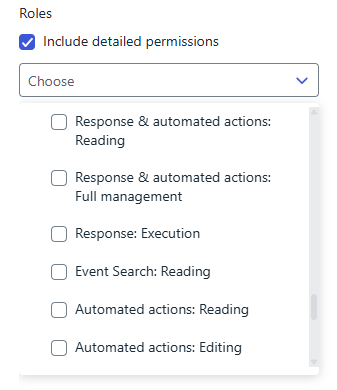
In Access Control, “Response: List responses” is now “Response & automated actions: Reading” and “Response: Execute responses” is now “Response & automated actions: Full management”. Permissions are unchanged. Organization Settings → Security Administrators keeps showing the previous names.
New granular roles for response and automated actions
Response: Execution lets users run response actions (jobs) and download response job artifacts. Automated actions: Reading lets users view automated action rules, automated services and the response actions list. Automated actions: Editing adds the ability to modify automated action rules. These are detailed roles: select Include detailed permissions above the Roles dropdown to see them.
-
Elements Security Center Common Features – 2026-09-18 Update
Read more
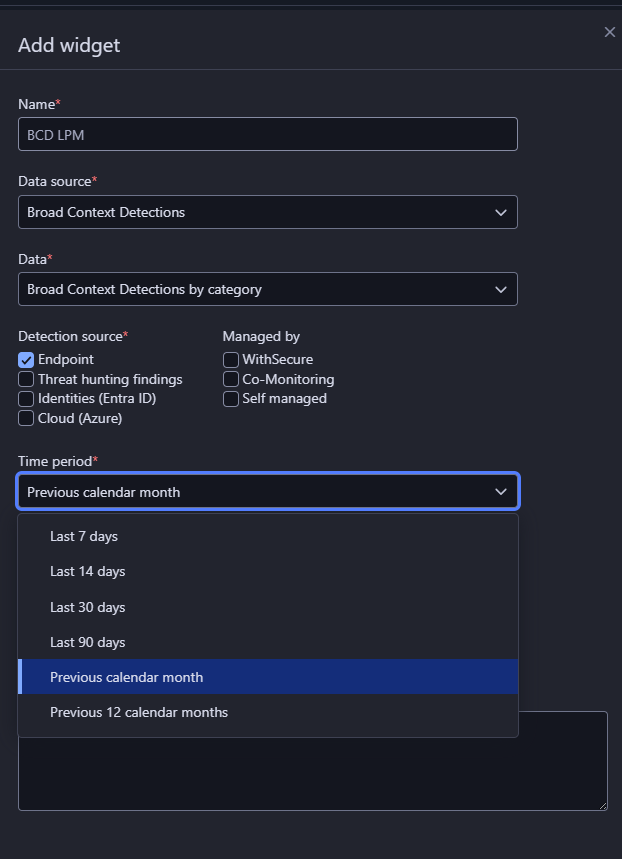
New time interval “Previous calendar month“ has been added for filtering BCD events in My report
“Previous calendar month” selection allows users to create a report of the exact length of calendar month (28-31 days) and not fixed to last 30 days.
Bug fixed in My report actions
Users could see report actions they didn’t have permissions for
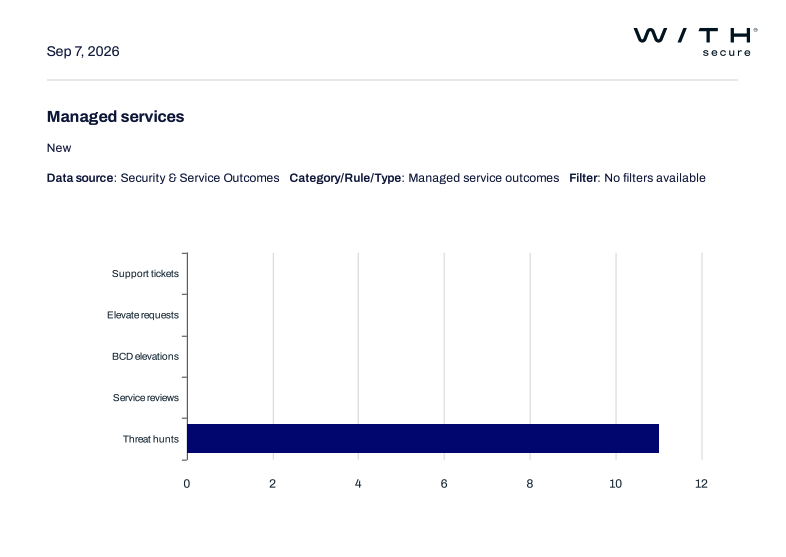
Managed Service outcomes widget added to My report
Managed Service Outcome widgets show numbers and value provided by different services/components to the customer.
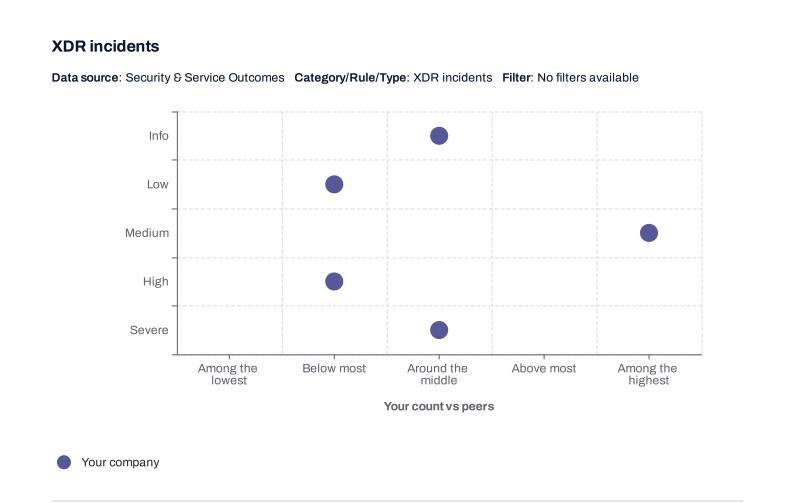
Benchmarking widgets added to My report
Benchmarking widgets show a benchmark score / indication of my company performance vs anonymized average same sized / industry company.
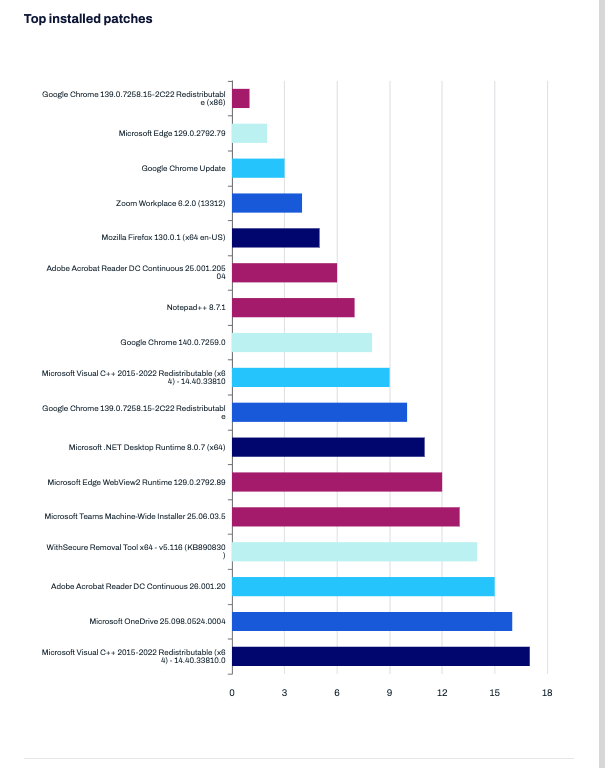
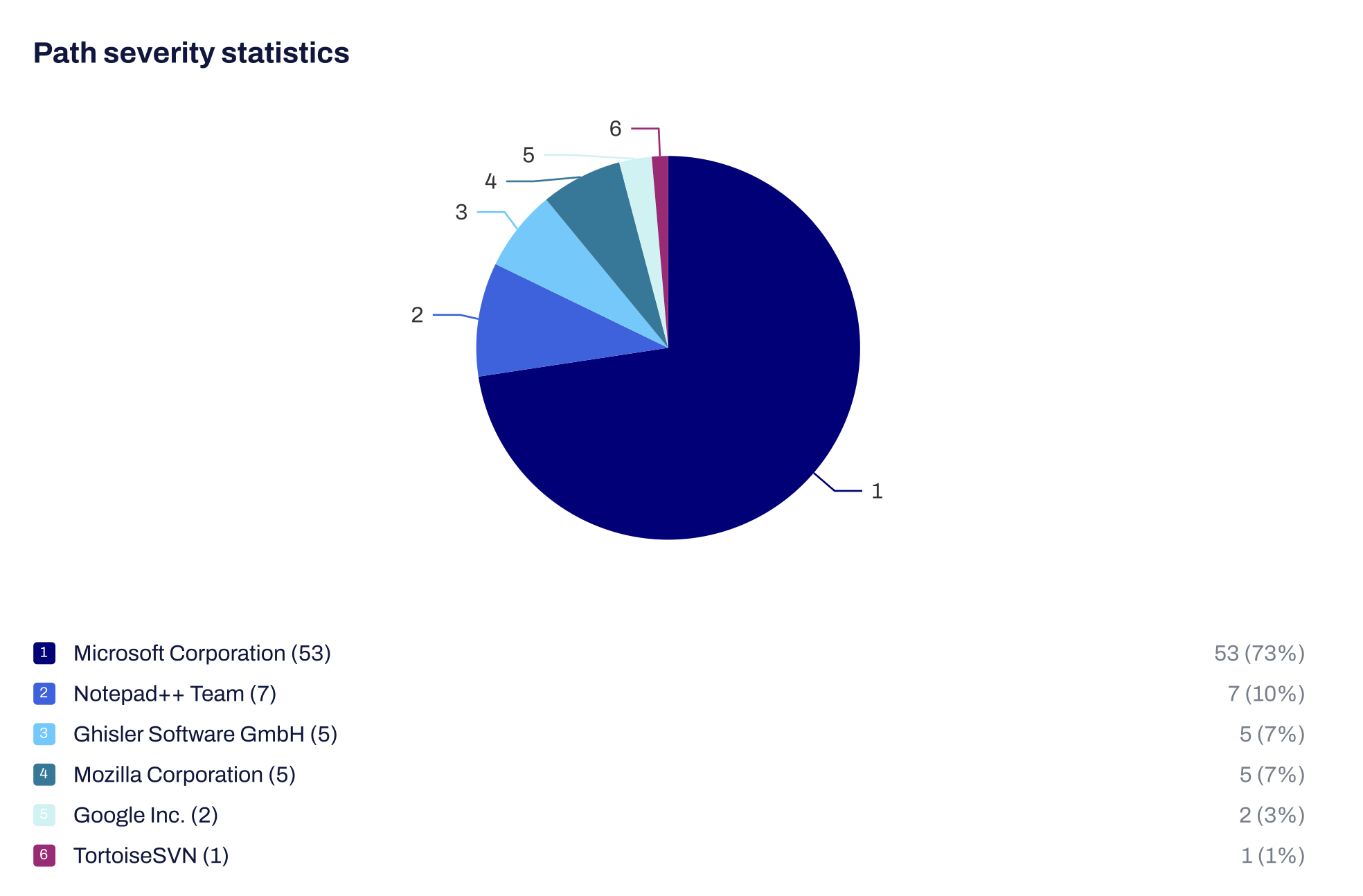
Rendering issue fixed My report PDF
Chart labels and legends overlapped on bar and pie charts, now ensuring that all data remains clear and legible in downloaded documents.
-
Elements Security Center Common Features – 2026-09-15 Update
Read more
Starting September 15, 2026, the email address becomes the only login identifier for WithSecure Elements accounts, and it must be verified. Some users will be asked to complete a short, one-time step at their next sign-in. Federated sign-in through an external identity provider is not affected.
Sign in with your email address
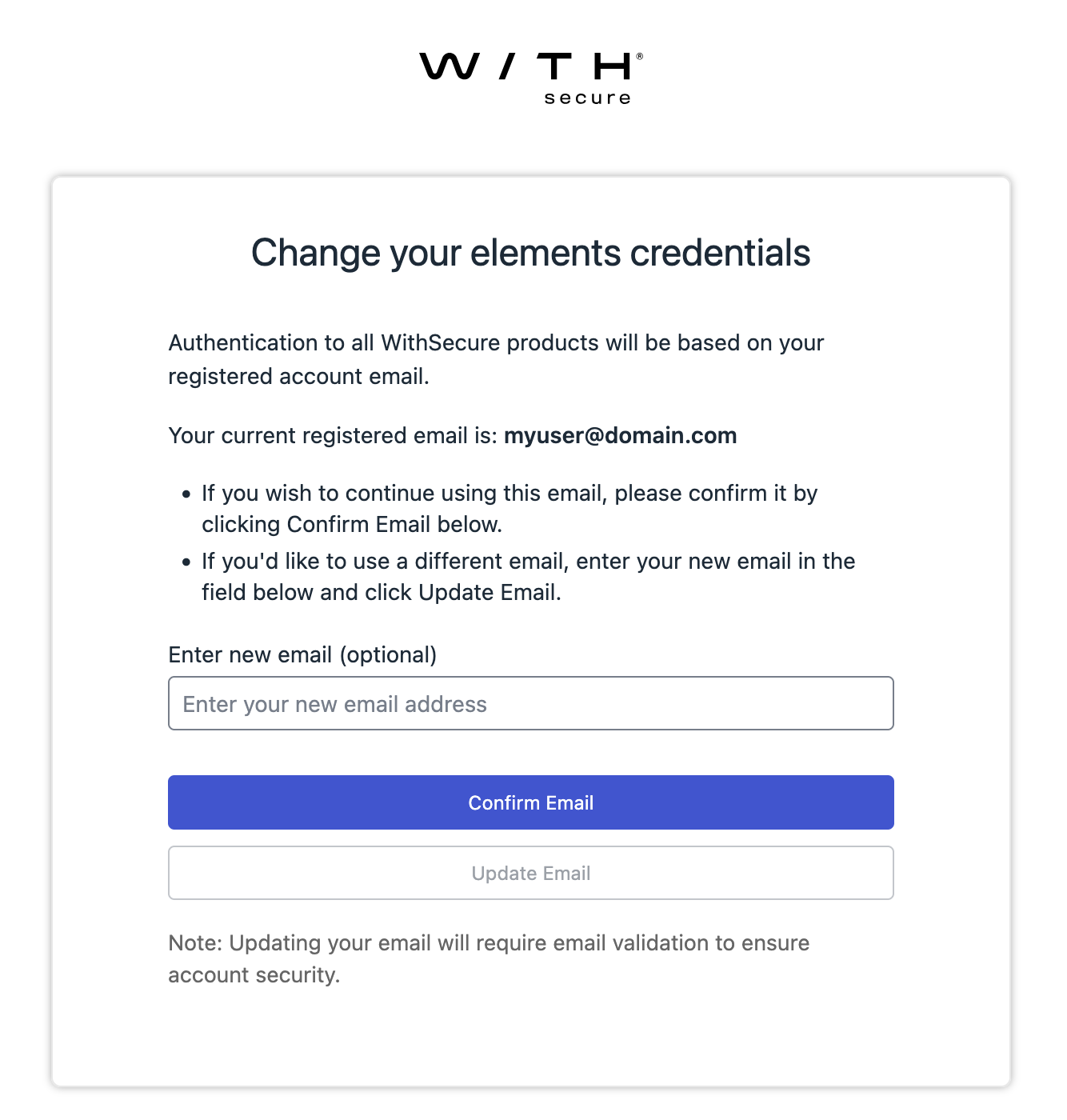
If the username stored on the account differs from the email address, the user is asked once, at the next sign-in, to confirm the registered account email: selecting Confirm Email keeps the current address, while entering a different one and selecting Update Email changes it. From that point on, the email address is the account’s only sign-in credential.
- This is a one-time, guided step. After completing it, the user is redirected to the sign-in page to sign in again.
- Updating to a different email address requires verifying the new address before it can be used to sign in.
Email address verification
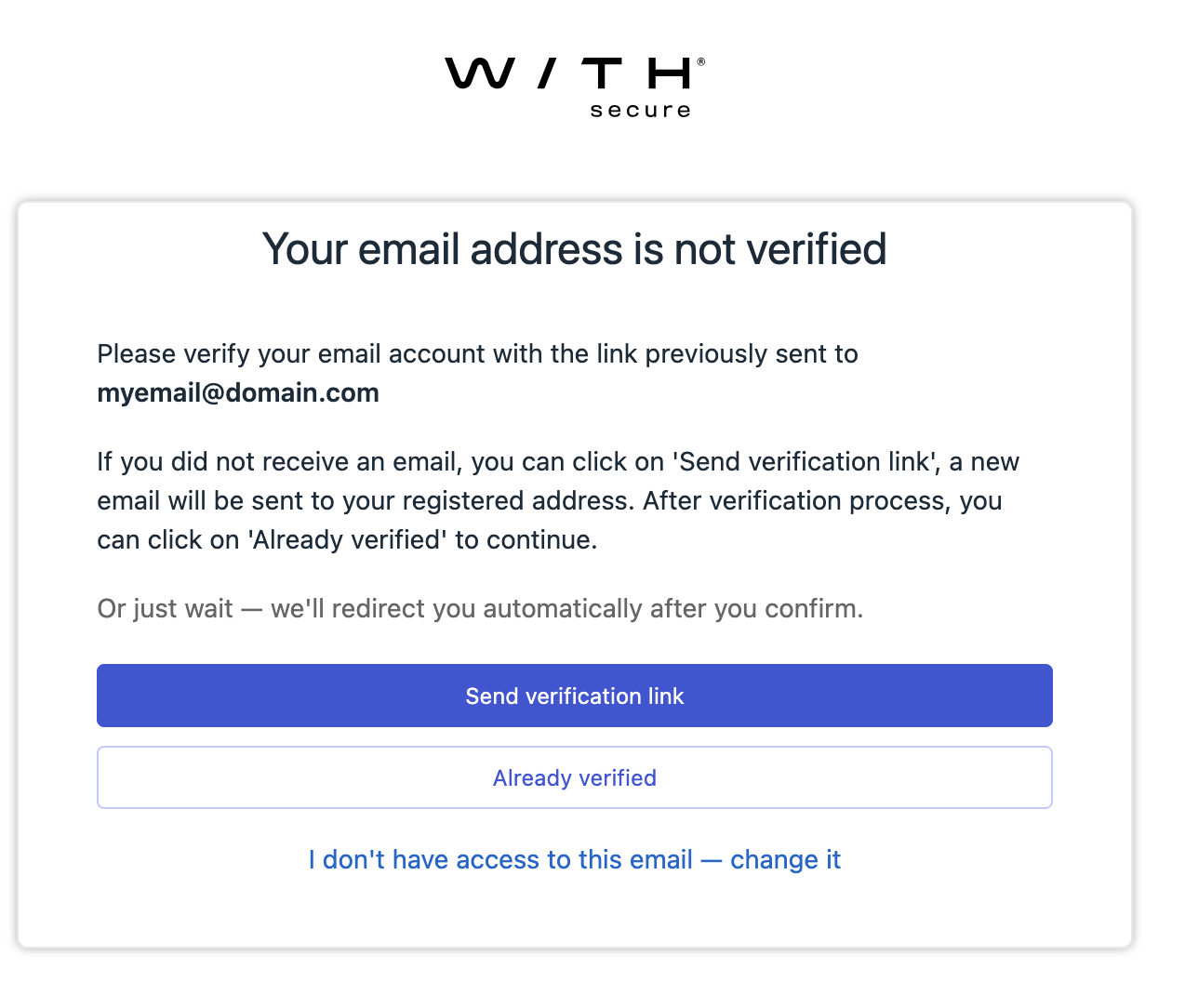
Users whose email address has never been verified are asked to verify it at sign-in. Selecting Send verification link sends a verification link to the registered address; once the address is verified, the sign-in continues automatically.
- Users who no longer have access to that mailbox can select “I don’t have access to this email — change it” to register and verify a new email address in the same step.
Elements sessions open in other tabs or applications may prompt for sign-in again shortly after either step is completed.
-
Elements Security Center Common Features – 2026-08-31 Update
Read more
New feature: RBAC for WithSecure Elements
Added a new Role-Based Access Control model for Elements, giving partners and companies more granular control over access.
- Full Microsoft Entra ID integration (sync users/groups automatically)
- Security groups for permission assignment
- Partner roles assignable without inviting partner security administrators into managed companies
- New “Elements Reading All” / “Elements Editing All” roles for full-solution access
Not enabled by default — must be turned on per organization by an IAM Administrator under Management → Access Control.
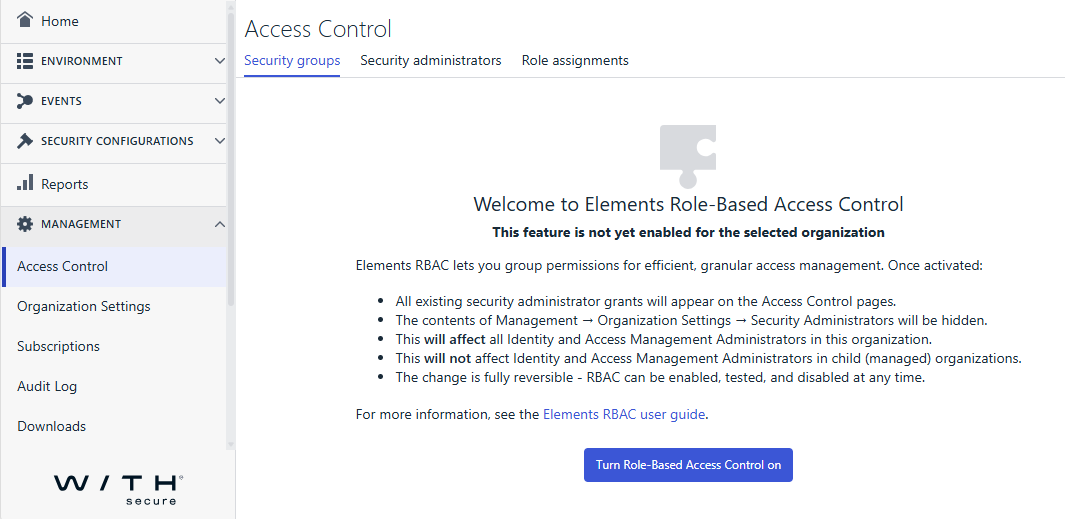
Once enabled, Organization Settings → Security Administrators is limited to SSO/Entra provisioning; all other access management moves to the new area.
See: User guide
-
Elements Security Center Common Features – 2026-05-20 Update
Read more
To prevent users from mistakenly using non-installable keys to activate Elements Agent, keys for non-installable product subscriptions are now hidden by default in the Management → Subscriptions view.
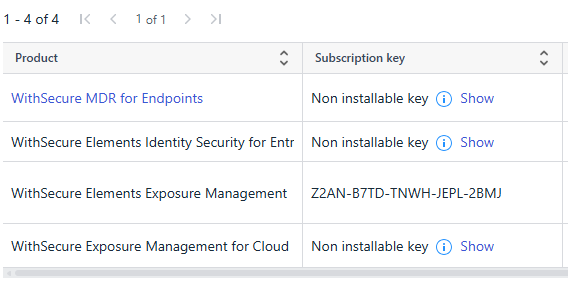
A non-installable key identifies a cloud or managed service entitlement that is not tied to a single asset or endpoint.
-
Elements Security Center Common Features – 2026-05-18 Update
Read more
Improvements:
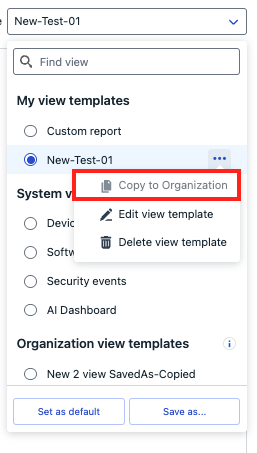
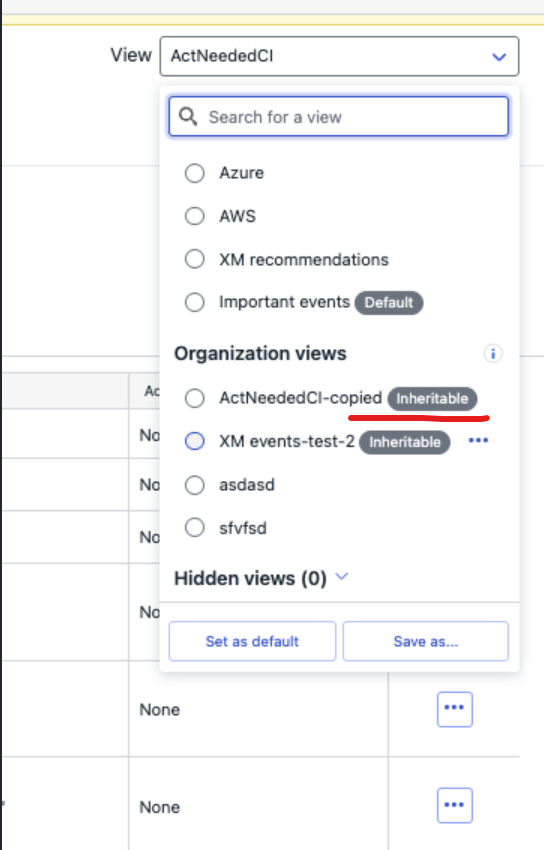
Security Events view selector functionality has been expanded:
– includes “organization views” (custom view can be copied to Org views)
– includes “partner views” (Org views can become “inheritable view” and be shared to all companies of SOP)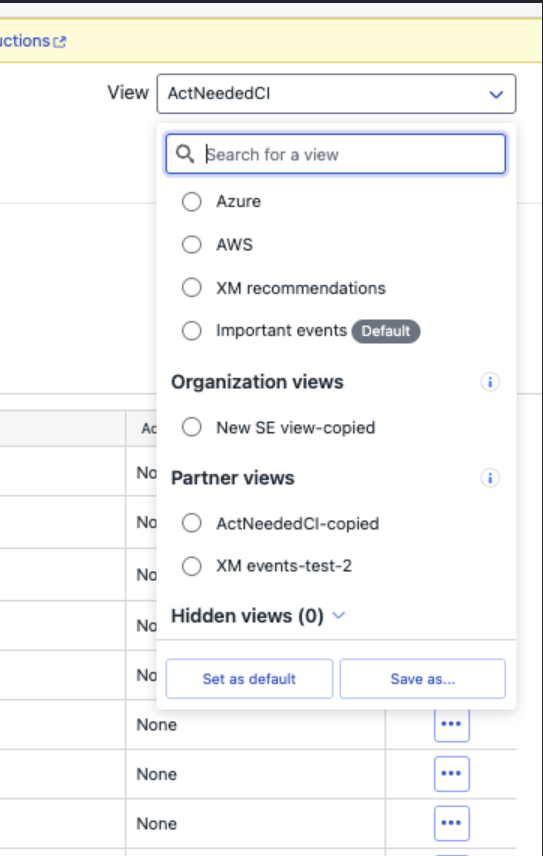
-
Elements Security Center Common Features – 2026-04-01 Update
Read more
Dear community,
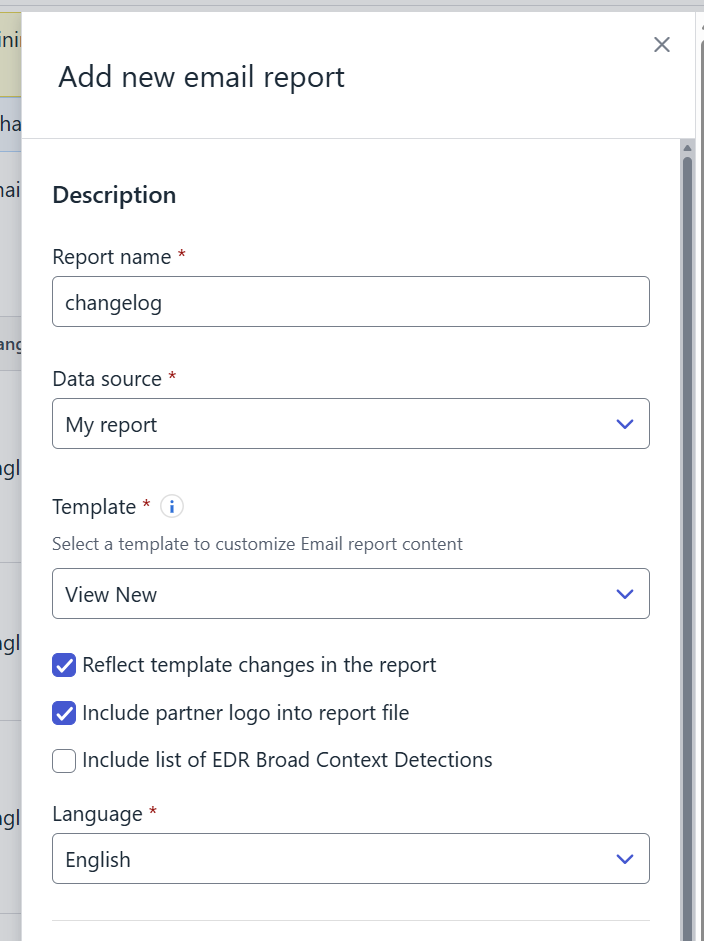
We are excited to introduce new enhancements to My Reports for MSP environments, designed to improve report management, consistency, and flexibility across organizational hierarchies.
Following are the new features
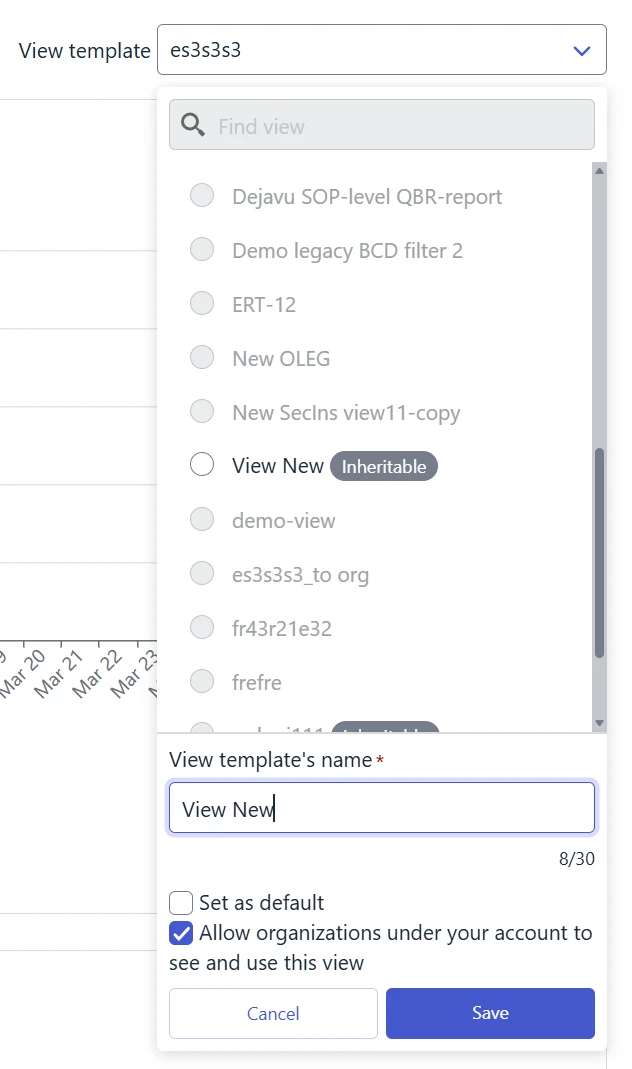
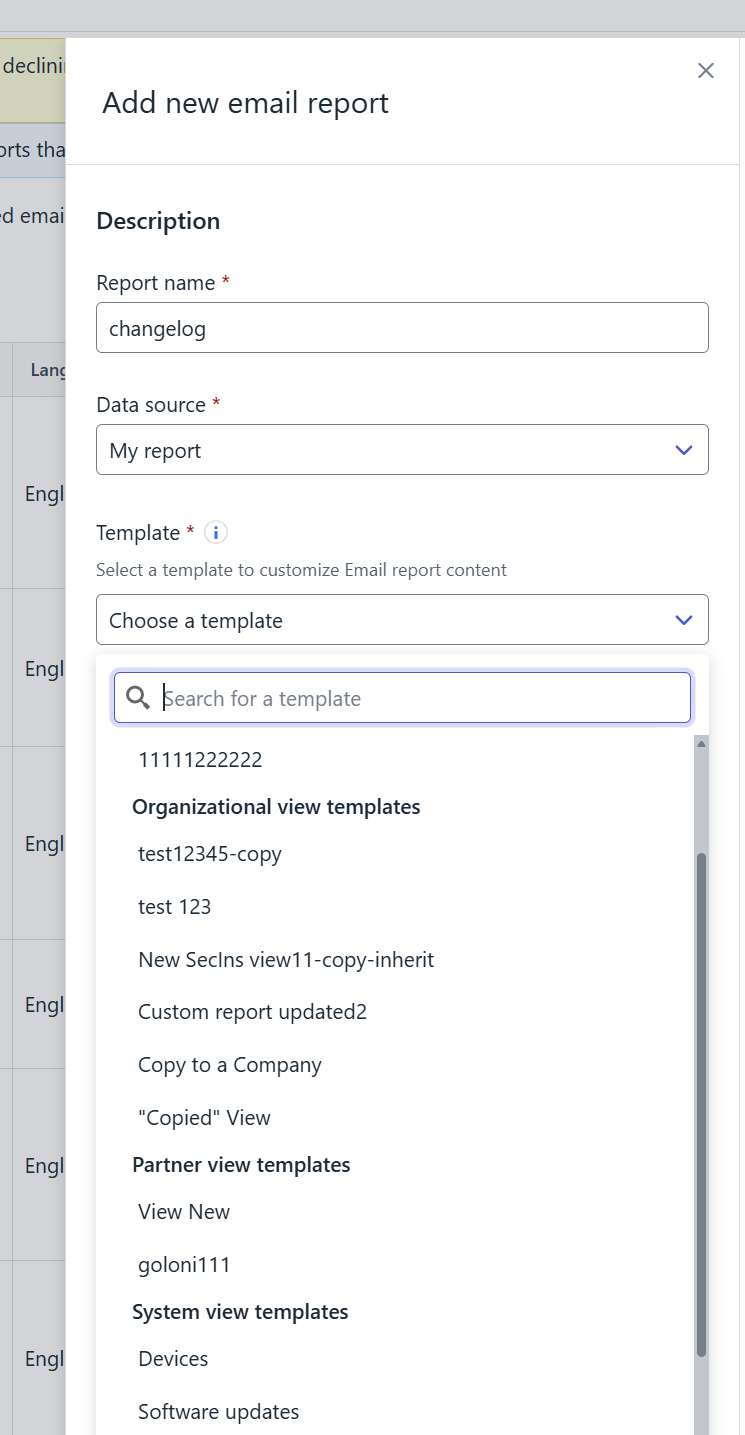
Inheritable View Templates
SOP administrators can now mark “My report” view templates as inheritable.
This means that:
- The template becomes visible to all underlying companies in the hierarchy
- Companies can use these templates to create reports within their own scope
Updatable Reports
Administrators can now create updatable reports that are linked to a view template.
Key benefits:
- Reports automatically reflect any updates made to the associated template
- Ensures reports stay aligned with the latest structure and data requirements
- Reduces manual updates and maintenance
Important notes:
- This feature works only with organization-level or inherited view templates
- For inherited templates, it is now possible to include a partner logo in the generated PDF reports
Limitations
- Previously created reports cannot be converted into updatable reports
- Once a report is created as updatable, it cannot be reverted to a non-updatable report
-
Elements Security Center Common Features – 2025-11-24 Update
Read more
Endpoint Protection access now available across multiple organizations
Elements Security Center users (security administrators) can now be granted Endpoint Protection access to multiple organizations. This eliminates the need for email plus addressing (example+subaddress@example .com) to create additional W/ Business Accounts for a user’s base email address.
Previously, Elements Security Center users could hold roles in multiple organizations, except for Endpoint Protection roles. This exception has now been removed, and the other roles function as before.
Example
Suppose these two plus-addressed user accounts granted partner administrator Jon Doe access to only two of 10 companies under the partner’s Solution Provider:
- john.doe+A@doe.com accesses company A.
- john.doe+B@doe.com accesses company B.
Jon Doe had to log into Elements Security Center twice to work with companies A and B. Now, plus-addressed accounts are unnecessary. They can be replaced with a single john.doe@doe.com account. The IAM administrator for the Solution Provider managing companies A and B (among 10 total) can grant Jon Doe access to both companies:
- Go to Elements Management > Organization Settings > Security Administrators view
- Change scope to company A
- Click “Add administrator” and enter john.doe@doe.com
- Assign Endpoint Protection (or other) roles
- Click “Add”
- Change scope to company B
- Repeat steps 3-5 to assign roles for company B
Afterward, the user account john.doe@doe.com sees companies A and B in the scope selector and can switch between them without separate accounts.
Effect on partner and company-level views
When a user is granted the EPP role at the partner level, it affects partner-level views. These views are not influenced by company-level role assignments, which neither restrict nor extend partner-level permissions when the partner organization is selected as the current view.
When viewing a single company, the EPP role granted to a user at the company level extends (i.e., adds to) the roles assigned at – and inherited from – the partner level.
Example
John Doe (john.doe@doe.com) has read-only access to Solution Provider in the role Computers & mobiles: Read-only. He can list devices for companies A and B managed in this Solution Provider but cannot modify them due to lacking full editing rights. John can use the scope selector to direct Elements Security Center portal views to companies A or B, where he retains read-only permissions.
The Solution Provider IAM Administrator can grant John Doe the Computers & mobiles: Full editing role for company A only:
- Go to Elements Management > Organization Settings > Security Administrators view
- Change scope to company A
- Click “Add administrator” and enter john.doe@doe.com
- Assign the Computers & mobiles: Full editing role
- Click “Add”
When John selects Solution Provider as scope, device lists for companies A and B remain read-only per partner-level access. Changing scope to company A enables him to edit devices there, while access to company B stays read-only.
Access across partner hierarchies
Cross-tenant security policy prevents access to company and partner organizations under different Solution Providers by default.
A user with access to an organization under one Solution Provider cannot be added to an organization under another Solution Provider unless WithSecure links the two Solution Providers with a trust relationship. Once a user account associates with one Solution Provider, attempting to grant permissions for an organization under another Solution Provider causes a “User cannot be added to this organization” error in the Security Administrators view.
Recommended action on email plus addressing (example+subaddress@example.com)
You can now use your primary account and email to add EPP access for multiple company or partner organizations. We recommend removing previously created plus-addressed accounts and assigning grants directly to the main account. Elements will provide access to multiple organizations without logging out and back in to switch contexts. All accessible organizations will appear in the scope selector after logging in with the primary email.
Note that Entra ID Federated SSO does not support plus addressing. Removing plus addressed user accounts enables federation of your email domain with Elements and allows Entra ID to serve as the primary identity provider for Elements Security Center.
Summary
- A Solution Provider partner user can be granted EPP access to selected:
- Service Provider organizations
- Company organizations
The administrator can switch between permitted organizations using the scope selector. They may lack access to other organizations or have read-only access to all, with higher access to manage selected organizations.
- A Service Partner user can be granted EPP access to selected company organizations
The administrator can switch between permitted companies using the scope selector. They may lack access to other companies or have read-only access to all, with higher access to manage selected companies.
- A partner does not need a dedicated plus-addressed account when managing only the EPP aspect of company security while other aspects are managed by the company or WithSecure directly (e.g., XDR, WithSecure Infinite)
The administrator can switch to the partially managed company using the scope selector, even if the company lies outside the partner Solution Provider hierarchy. Logging out and in with different account is not required anymore.
-
Elements Security Center Common Features – 2025-07-25 Update
Read more
As per announcement: New roles for managing access to XDR features changes were made to Security Administrators screen.
All EPP users in the system as of June 30, 2025, were automatically granted access to XDR features to maintain backward compatibility. New EPP users created after this date must have their XDR access explicitly assigned with one of the new XDR roles:
- Broad Context Detections
- Full editing or
- Read-only
- Response
- Execute responses or
- List Responses or
- No access
- Event Search
- Read-only or
- No access
Elements IAM Admin is the only role authorized to grant or revoke XDR access.
- Broad Context Detections