


Integrating Autotask PSA to WithSecure Elements
WithSecure have announced the availability of a new integration with Autotask PSA as part of new Managed Service Provider (MSP) focus, designed to empower MSPs to deliver scalable, compliant, and profitable cybersecurity services. The integration helps MSPs to automate their workflows to deliver Advanced Endpoint Protection, Exposure Management, and Extended Detection and Response (XDR) capabilities and Managed Detection and Response (MDR) services with WithSecure Elements Cloud platform.
The seamless integration of WithSecure Elements with Autotask PSA delivers a comprehensive, multi-tenant and single-agent cybersecurity solution – plug in, power up, and let the integrated ticketing automate your workflows.
Background
WithSecure Elements has native integration capabilities to automate ticket creation workflow with Autotask PSA. Integration can be easily configured from Elements Security Center.
How to Get Started
Get integration credentials from Autotask
- Login to www.autotask.net management console
- Click “Admin” from navigation panel (left hand side)
- Under “Admin categories” select “Organization settings and users”
- Expand “Resources/Users (HR)”
- Click “Resources/Users”
- From “New” dropdown list select “New API User”
- In new Add API user popup window
- Fill mandatory general settings (names and email etc.)
- You can choose “API user (system) Can’t Read Costs” from “Security Level” options as this is enough for WithSecure Elements integration
- Under Credentials section click “Generate key” button
- Under Credentials section click “Generate secret” button
- Copy key and secret to be used in WithSecure Elements Security Center
- Under “API Tracking Identifier” select “Integration vendor” radio button
- From “Integration vendor” dropdown list select “WithSecure”
- Click “Save & Close” button on top of the page
You will need the following information to be able to configure the Autotask PSA integration in the Elements Security Center
- API username/key
- API password/secret
Go to Integrations section in Elements Security Center
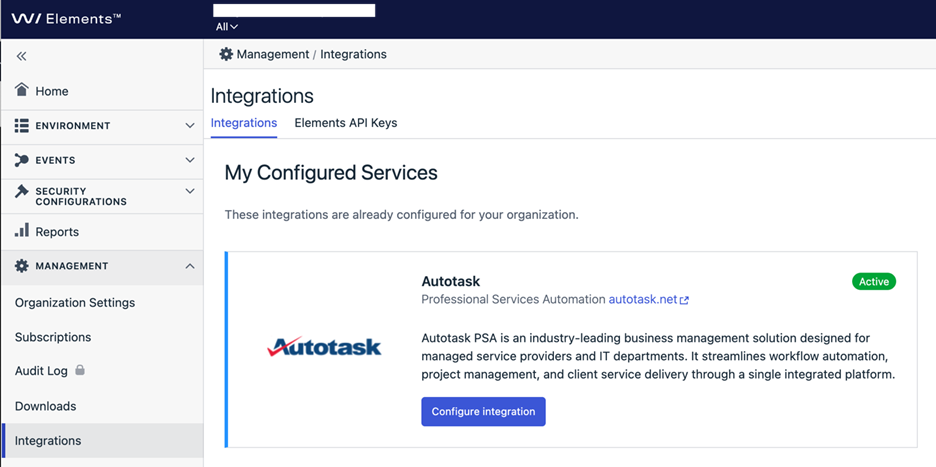
Select “Configure integration” from Autotask component
Configure integration
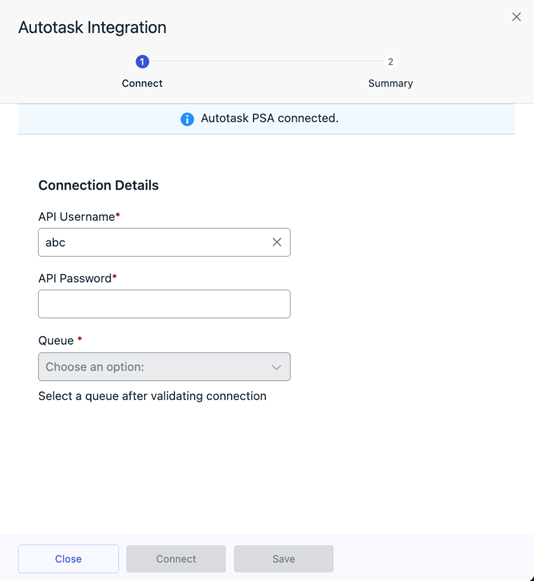
- Set API username as copied from Autotask management console
- Set API password as copied from Autotask management console
- Click connect to validate connectivity and load queue definitions from Autotask
- Select queue where WithSecure Elements creates tickets to
- Click save
- When ordering WithSecure products from WithSecure partner portal for a customer, include Customer company’s Autotask PSA reference ID in the in WithSecure Partner Portal “New order” form “End Customer Id” field.
- Ticket creation will automatically start for this company
- Monitor BCD tickets from Autotask PSA tool. Tickets have basic information about Elements Security Center activity with deep link WithSecure details.
To import existing customer accounts without “End Customer ID” when ordered, please contact WithSecure support.
Monitor BCD tickets from Autotask
Tickets have basic information about Elements Security Center activity with deep link to WithSecure details.
Availability
The integration is now available exclusively to WithSecure Partners in Elements Security Center. Free trials and company-managed subscriptions cannot access them. New partners should contact WithSecure to access dedicated partner features in WithSecure Elements.