-
Collaboration Protection: Transitioning Exchange Protection to Microsoft Graph API
Read more
Microsoft is retiring Exchange Web Services (EWS) for Exchange Online as part of its ongoing platform modernization. To stay aligned with Microsoft’s recommended architecture, WithSecure Collaboration Protection is transitioning Exchange protection from EWS to Microsoft Graph API.
This transition ensures that Collaboration Protection continues to provide reliable protection for Microsoft 365 environments while adopting Microsoft’s modern, supported platform.
For more information about Microsoft’s announcement, please refer to Microsoft’s official documentation:
Deprecation of Exchange Web Services in Exchange Online | Microsoft Learn
What is changing?
Following the transition, Collaboration Protection will use Microsoft Graph API for Exchange Online alongside the existing Microsoft Graph API integrations used for Microsoft Teams, OneDrive, and SharePoint.
Email protection—the primary security workload—will continue without interruption. Customers will continue to benefit from the same email scanning and detection capabilities throughout and after the transition.
The main change concerns a small number of Exchange item types. Microsoft Graph API does not provide equivalent capabilities for calendar events, contacts, tasks, notes, and sticky notes. As a result, Collaboration Protection will no longer scan these item types after the transition.
Historically, these content types have represented less than 1% of all detections generated by Collaboration Protection, meaning the practical security impact of this change is expected to be minimal.
What does this mean for customers?
For the vast majority of customers, there is no expected change to day-to-day protection. Email remains the primary attack vector targeted by Collaboration Protection and will continue to be fully protected throughout and after the transition.
The only change is that Collaboration Protection will no longer scan Exchange content types other than email, including calendar events, contacts, tasks, notes, and sticky notes. Based on our historical detection data, these content types have contributed to fewer than 1% of all detections, making the impact on overall protection very limited.
Why are we making this change?
This change is driven by Microsoft’s retirement of Exchange Web Services and the transition to Microsoft Graph API as the supported interface for Exchange Online.
By aligning with Microsoft’s modern platform, we ensure that Collaboration Protection remains reliable, supported, and ready for future Microsoft 365 enhancements while continuing to provide strong protection where it matters most.
Transition timeline
August 2026 – Transition begins
Customer environments will be transitioned to Microsoft Graph API–based Exchange protection in stages throughout August 2026.
Email protection will remain fully operational throughout the transition.
Microsoft Graph API requires updated permissions. Customers who need to grant the new permissions will see a notification banner in the Collaboration Protection Portal with step-by-step instructions.
September 2026 – EWS support ends
From 1 September 2026, Collaboration Protection will begin phasing out Exchange Web Services.
After the transition is complete, Collaboration Protection will no longer scan the following Exchange item types: Calendar events, Contacts, Tasks, Notes and Sticky notes. Email protection will continue as normal.
Action Required: Existing EWS‑Quarantined Items
Items previously quarantined via EWS — particularly Calendar events, Contacts, Tasks, Notes and Sticky notes — will no longer be accessible via the Graph API once the migration is complete. Due to this limitation, action is needed for items that were previously quarantined via EWS.
What you need to do
Administrators must verify if they would like to release or delete any of the existing EWS-quarantined items, which will no longer be accessible via Graph API, no later than August 31, 2026. Any items left unreleased by this date will be automatically deleted by ECP on September 15, 2026
How to identify affected items
Items requiring action can be identified in the Collaboration Protection portal, on the Quarantine page, in two ways:
- Check the item type via detection details – Select “View detection” on the quarantined item and verify whether the Item type is one of: Appointment, Contact, Contact group, Post item, or Task
- Use the new Item type filter – Apply the filter: Exchange → Item type: Calendar event, Contact, or Other.
Either method will help you identify items that require verification and possible action before the deadlines above.
Our commitment
This transition keeps Collaboration Protection aligned with Microsoft’s modern platform while ensuring uninterrupted protection for the workloads that matter most.
We will communicate with customers throughout the rollout and provide guidance where any action is required to complete the transition.
If you have any questions, please contact your WithSecure representative.
-
New Closed Resolutions
Read more
Closed Resolutions for Broad Context Detections
Overview
We’re introducing new closed resolution types for Broad Context Detections (BCDs). These resolutions will replace the existing Confirmed and Unconfirmed options, giving you a more precise and consistent way to record outcomes, drive automation, and help the system improve over time.
This article explains each upcoming resolution, when to use it, and how it will affect system behavior once the feature is live.
Closed Resolutions
The following resolutions will be available when closing a BCD. Some are set manually by the user, others are applied automatically by the system.
Resolution
Set by
Description
Incident
User
The BCD is a security issue and requires action. Select this when you confirm the BCD is a true incident or unauthorized activity. Use this only if you are certain that the BCD is malicious or needs follow-up.
Inconclusive
User
Select this if you cannot determine whether the BCD is a real security issue due to insufficient information or context. No automatic actions are taken and the BCD is not used for training or automation. Do not use this as a default option.
False Positive
User
There is an incident based on normal application behavior or automation that seems like normal safe behavior. Closing as false positive helps the system learn and identical incidents will be closed automatically in the future.
Accepted Behavior
User
Sometimes false positive incidents that appear the same have differences in their command-line or path parameters causing them to be “not identical”. Closing as Accepted Behavior will offer a wizard to create suppression rules where you can fine tune parameters with wild cards allowing more powerful suppression of false positives.
Auto Accepted Behavior
System
The system closed the BCD automatically due to a matching suppression rule. The BCD remains visible for audit and compliance purposes. No user action is required, but you can review the suppression rules if needed.
Auto False Positive
System
The system closed this BCD automatically because it matched a previous false positive. No further monitoring is performed. If you believe the ruling was incorrect, you can review your previous resolutions.
Choosing the Right Resolution
Use the following guidance to select the most appropriate resolution:
- Incident – use when you are confident the BCD represents a real attack or unauthorized activity.
- Inconclusive – use when you have reviewed the BCD but cannot determine whether it is a real threat due to missing context.
- False Positive – use when the detection was wrong, or the same alert keeps appearing without security relevance.
- Accepted Behavior – use when the behavior was intentional and authorized (for example, a planned admin action), but you do not want to create a suppression rule.
Note: Avoid using Inconclusive as a default. It is intended for cases where context is genuinely insufficient. Overuse reduces the value of this resolution for system learning and future improvements.
How Resolutions Affect System Behavior
Resolutions are not just labels. They have direct effects on automation and future detections:
- BCDs closed as Incident are not used to trigger any automatic suppression. They are used to improve detection accuracy over time.
- BCDs closed as Inconclusive are excluded from training and automation.
- BCDs closed as False Positive may cause similar future BCDs to be automatically closed as Auto False Positive.
- BCDs closed as Accepted Behavior can be used as the basis for creating a suppression rule, which will automatically close matching future BCDs as Auto Accepted Behavior.
Note: Auto False Positive is not triggered when a previous BCD has been resolved as Incident. This prevents real threats from being automatically dismissed.
Suppression Rules and Accepted Behavior
Closing a BCD as Accepted Behavior does not automatically suppress similar BCDs in the future. To prevent similar BCDs from recurring, you need to create a suppression rule.
When closing a BCD as Accepted Behavior, you will be prompted to create a suppression rule if the BCD contains recognized unsuppressed key detections. You can also create and manage suppression rules manually in Security Configurations → Automated Actions → Suppression Rules.
Note: For more information on suppression rules, see the Suppression Rules user guide.
Email Notifications
Resolution types affect email notification behavior as follows:
- Incident – triggers the same email notification behavior as the former Confirmed resolution.
- Inconclusive – triggers the same email notification behavior as the former Unconfirmed resolution.
- All other resolutions follow standard notification behavior.
Transition from Previous Resolutions
The Confirmed and Unconfirmed resolution types have been replaced by the resolutions described in this article. The following mapping applies:
- Confirmed → use Incident for true security incidents, or Accepted Behavior for authorized activity.
- Unconfirmed → use Inconclusive when context is insufficient to make a determination.
BCDs that were closed with previous resolution types before this change are not affected. Their resolutions remain unchanged.
-
Upcoming Retirement of the Infections Alerting Configuration in Security Events
Read more
We would like to inform you that the Infections Alerting Configuration feature on the Security Events page in Elements Endpoint Protection will be retired on 31 August 2026.
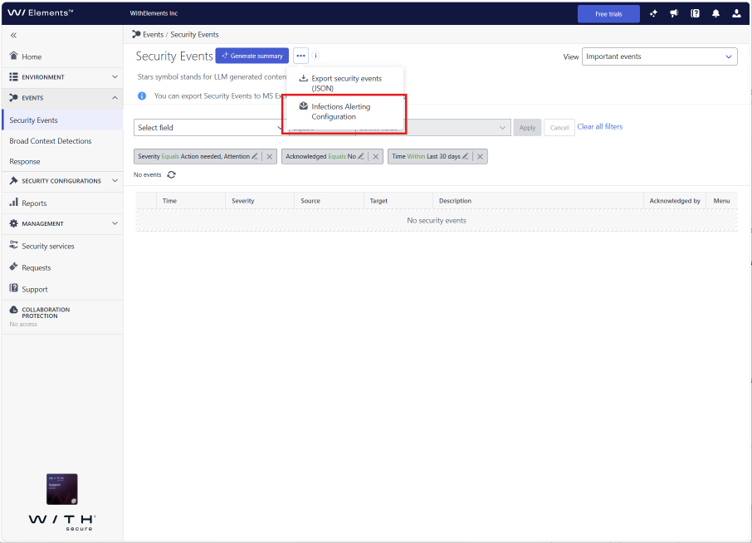
The same functionality —and more — is available through the new Email notifications feature. We encourage you to start using email notifications for security event alerting going forward. By doing this you will be ready for the time when we remove the Infections Alerting Configuration.
You can find instructions on how to set up customized email reports on security events in our user guide: Creating customized email reports on security events.
-
New Feature: Software Inventory (Beta)
Read more
We are excited to introduce Software Inventory (Beta), a new view in WithSecure Elements. With the Software Inventory for installables, we introduce a substantial improvement on the visibility of your attack surface – another capability helping you to move from reactive to proactive security.
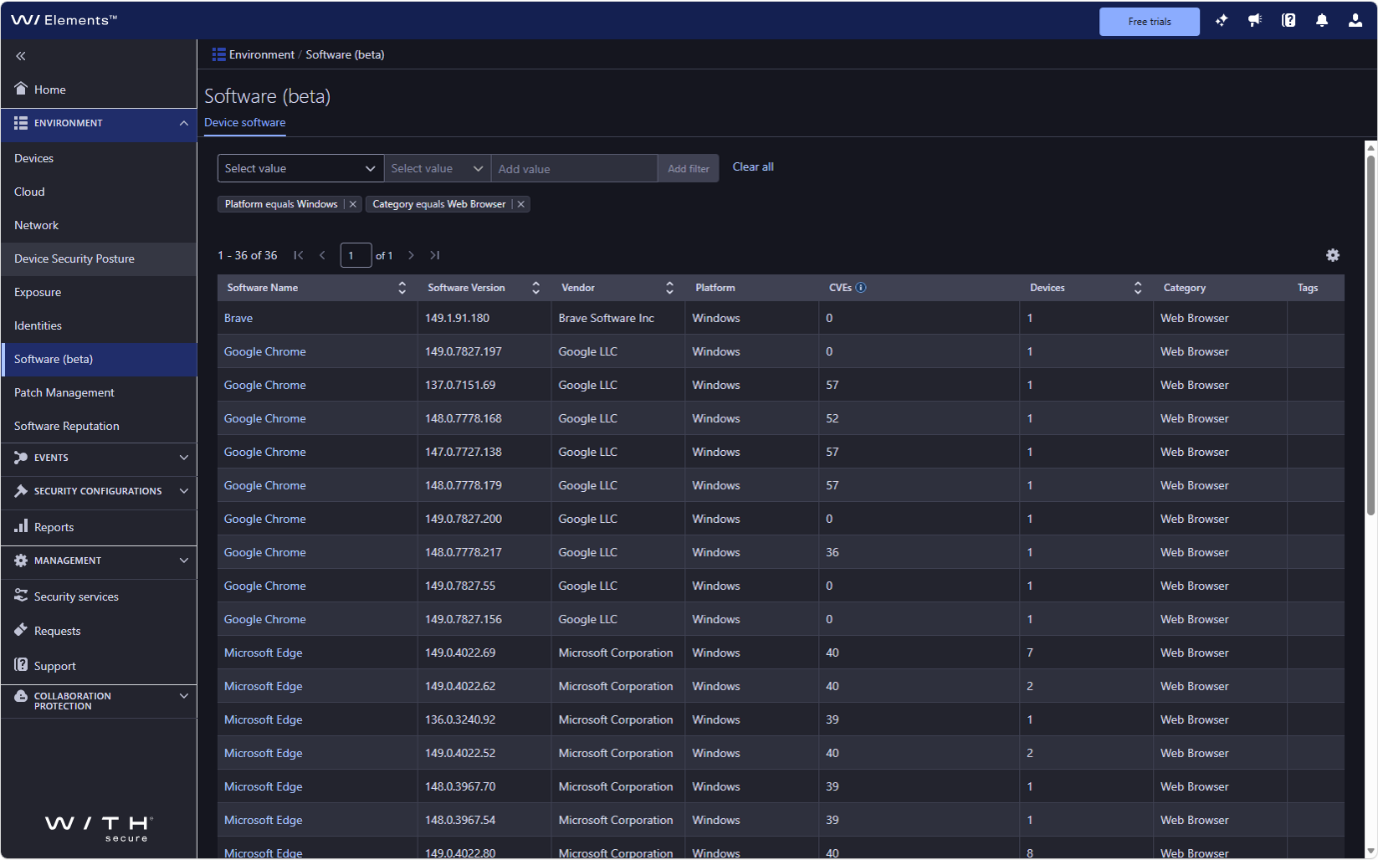
With Software Inventory, you can:
- Browse a real-time inventory of software across all managed devices, including names and versions
- Filter by device properties (OS type) and software properties (vendor, category, tags)
- Identify software with known vulnerabilities flagged by CVE severity
- Tag and organize software for easier management
- Inspect individual devices to see what software is installed, and view all devices where a specific software is present
Why beta? Software Inventory is fully functional, but we are still validating the accuracy and completeness of the displayed data across diverse environments. We welcome any observations you share with us as we work toward general availability.
-
New prebuilt integrations for Datto RMM, NinjaOne and Splunk
Read more
We have released new integrations connecting WithSecure Elements with NinjaOne and Splunk. A new Datto RMM integration is currently available in beta.
What they do
With NinjaOne and Datto RMM integrations, administrators of these Remote Management and Monitoring (RMM) tools can automate the installation of WithSecure Elements Agents.
More RMM integrated functionality will be added to these integrations in the future.
WithSecure Elements Add-on for Splunk was recently added to Splunkbase as well as WithSecure Connect Integrations Catalog under Security Information and Event Management (SIEM) category as a community created and supported integration. The Splunk integration collects security events and detections in Splunk with an add-on that Splunk users can access directly from Splunkbase.
How to get started
Deployment guidance for integrations provided by WithSecure at:
Deployment guidance for integrations provided by 3rd parties is linked to WithSecure Connect Integrations Catalog.
Status and roadmap
The NinjaOne RMM integration is now generally available (GA).
The Datto RMM integration is still in beta while we finalize them for public release. The integration is fully functional with the current feature set. We will provide an update on general availability once beta testing is complete. Over time, the new Datto RMM integration will replace the existing legacy WithSecure RMM integrations for Datto RMM.
-
What’s New in Elements – May 2026
Read more
Extended Detection and Response
Endpoint Protection
Elements Agent for Mac
WithSecure Elements Agent macOS 26.2 has been released to general availability (GA) on 5th of May 2026.
This release brings
• Updated sensor component
• Updates to the Software updater component
• Bug fixes to client side support of software inventory feature (available later in 2026)
Installer can be downloaded from
https://download.withsecure.com/PSB/latest/ElementsAgentInstaller.mpkg
Elements Agent macOS 26.2 supports following macOS versions:
• macOS 26 Tahoe
• macOS 15 Sequoia
• macOS 14 Sonoma
Elements Agent for iOS
An update to the WithSecure Elements Mobile Protection app for iOS (26.4.12194) has been released.
Fixed issues:
• Users can now temporarily pause network protection directly from the iOS Control Centre using the new widget, without navigating into the app. This makes it easier to use banking apps in Nepal that are incompatible with the VPN profile used to route traffic through Mobile Protection. Note that network protection must be paused for these banking apps to work. Protection resumes when the pause expires or is manually re-enabled.
- Fixed a crash that could occur immediately after launching the app following an update
- The “Artificial Intelligence” category is now available in Web Content Control, allowing administrators to manage access to AI services from the Elements Security Centre
Elements Agent for Linux
An update for Elements Agent for Linux (version 26.1.512) has been released. This update includes the following changes:
- Fixed an issue where activating the agent with automatic updates disabled could cause activation to time out or result in missing components.
- Installation-time connectivity check timeouts no longer cause the installation to abort; the installer will now attempt to continue and complete.
- Fixed classification of Oracle Linux 7 for installation and updates.
- Added a check during activation to verify that existing installation directories have correct permissions and do not contain symbolic links.
- Adopted a new version numbering scheme in the format YY.SEQUENCE.BUILD (e.g. 26.1.512).
- Added support for installing on Ubuntu 26.04.
Endpoint Detection and Response
Following up on our earlier updates regarding the Detection and Response Reports view, we are now moving to the final step of this transition.
What is changing next?
On Monday, June 1, the Detection and Response Reports tab will be removed from Elements and will no longer be available.
The page already includes a notification to help you prepare for this change:
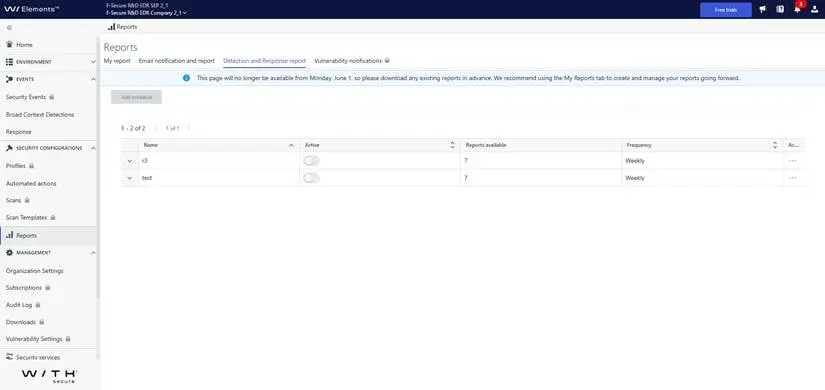
After this date:
- The Detection and Response Reports tab will no longer be accessible.
- Any reports that have not been downloaded before this date will no longer be available through this view.
What should you do now?
Please make sure to download any reports you want to keep before June 1.
We recommend using the My Reports tab to create and manage your reports going forward. It provides a more unified and up-to-date reporting experience and is now the main place for all reporting activities.
Moving to My Reports ensures you can continue working with your reports without interruption.
Thank you for your support during this transition and for helping us simplify and improve the reporting experience.
Exposure Management
Exposure Management for Business
Our latest release include updates related to Identity views, reports, XM Recommendations, XM Findings and Devices views.
Identity
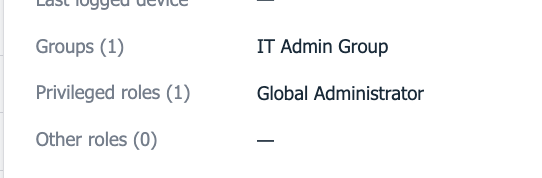
Identity Details –> Entra Group Membership
Entra group membership is now visible in the Identity details pop-up, complementing the already-available Entra roles view.
Reports
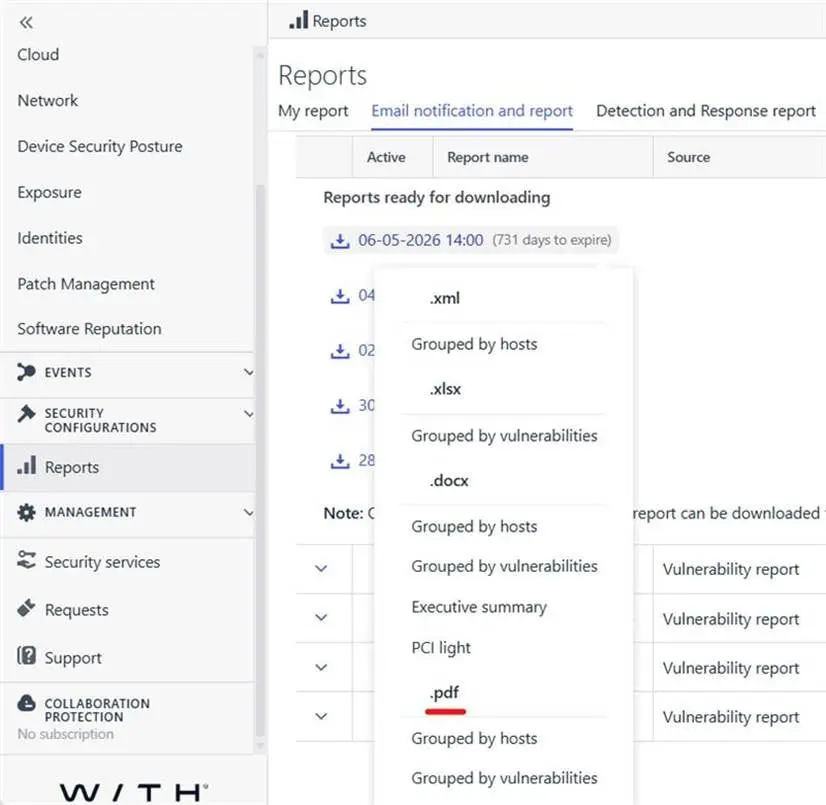
XM vulnerabilities reports are now available in pdf format
Elements Vulnerability Management Reports, accessible from Reports -> Email notification and report menu are now also downloadable in pdf format from the same context menu as before.
Note: This applies to only newly generated reports
Devices
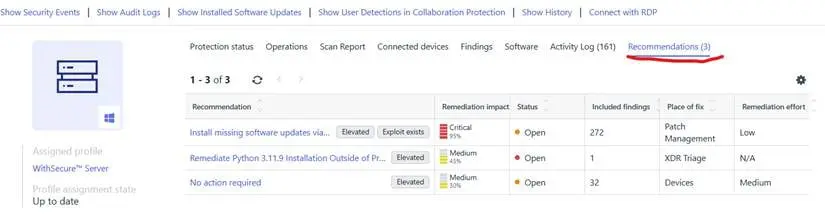
Device details page features recommendations list
The device details page Environment → Devices → (Computers & Unmanaged devices) features a new tab for showing XM recommendations only for the selected device.
Note: This tab lists only open recommendations (status category = Open)
Recommendations and Findings
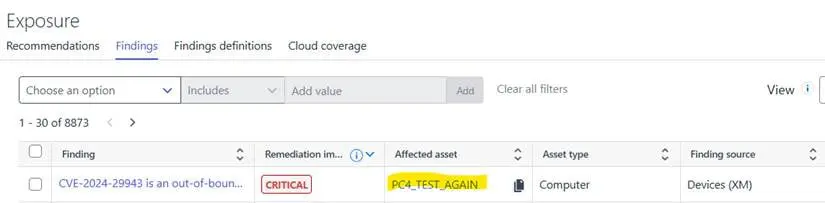
Direct navigation from Finding instances to the affected device view is now possible.
Affected asset of the Environment -> Exposure -> Findings view has a hyperlink which opens the details view of the affected asset in a new browser tab.
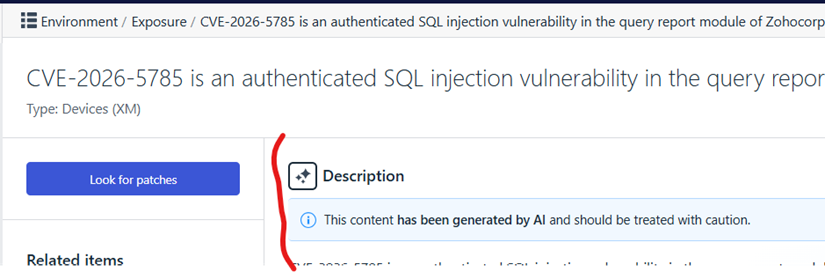
CVE-based findings being part of any Attack Paths, get an enhanced AI-generated description.
Finding details page, explicitly shows an icon to indicate whether the description is AI-generated.
Note: Not available to all CVEs, only if CVE is part of any attack paths to help with understanding the attack path step
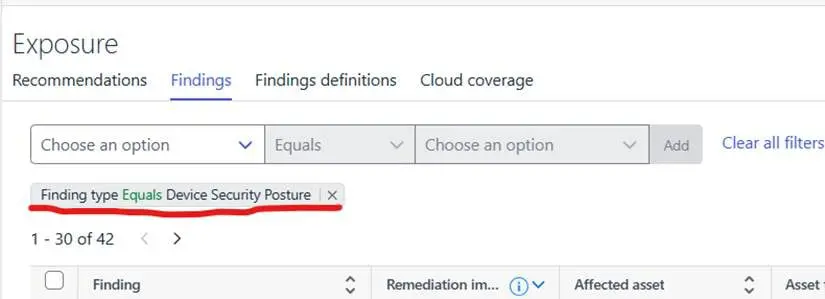
Device Security posture issues are now advised in XM as recommendations (requires EPP license).
In case an EPP subscription is already active for a company, security posture issues are already visible via Elements portal at Environment -> Device Security Posture menu. However if the company has XM subscription on top of EPP, all device security posture issues now presented also as XM recommendations. This will help with how to prioritize device security posture recommendations over all other recommendations.
Device Security Posture recommendations are visible from Environment -> Exposure -> Recommendations list view also their Findings from Environment -> Exposure -> Findings by applying filter FindingType = ‘Device Security Posture’
Note: Security Posture Recommendations are only guaranteed for the newly found device posture issues which are created after the date of this release.
Vulnerability Management Portal
We have made multiple releases to the portal during May, and here are the highlights:
- Resolved an issue where the scanning mode (Passive or Active) was missing from the Network Scans list. The scanning mode is now displayed correctly for each target.
- Resolved an issue where removed unmanaged devices were still visible in legacy views and in the Summary Report wizard. Removed devices are now hidden consistently across all views.
- Resolved an issue where vulnerability counters were not recalculated after related scans had been deleted. Counters now reflect the current state correctly.
- Resolved an issue where Network Scan reports could not be opened in a new browser tab via right-click. Reports can now be opened in a new tab as expected.
- Resolved an issue where manually removing a subset of hosts from a Network Scan Group could trigger unintended removal of additional hosts in the same group. Only the selected hosts are now removed.
- Added support for SSH authentication when configuring System Scans targeting Windows devices. Previously, SSH was only available for Linux and network targets; Windows targets were limited to WinRM. With this change, users can now configure Windows-over-SSH scans, including Windows-specific options such as Windows Server Update Services (WSUS) and Windows Update settings, alongside the standard SSH options available for Linux.
- Note: This capability is currently available via API only. UI support in the System Scan wizard is coming in a future release.
- Resolved an issue where vulnerability counts on the Computers and Unmanaged Devices lists could display incorrect values.
- Resolved multiple issues in summary reports: fixed Japanese language rendering, added missing reference links (CVE identifiers), and updated product branding to WithSecure Elements Exposure Management.
- Resolved an issue where new users were not created in the system when assigned to an organization.
- Resolved an issue where navigating to a deleted or blocked unmanaged device would result in a 404 error. The device can now be viewed in an inactive state with available management options.
- Resolved an issue where removed unmanaged devices were still visible in multiple Exposure views.
- Resolved an issue where navigating from a scan definition to an unmanaged device could result in a 404 error if the device had been removed or blocked. The user is now redirected to the “Manage removed devices” view.
- Improved the error message displayed when the Scan Node Agent licence has expired.
- Overall performance and stability improvements.
Exposure Management System Scan
Support for detecting vulnerabilities in the following products was added to Authenticated Scanning for Windows:
- Acronis DeviceLock DLP
- ConnectWise Automate Agent
- Daemon Tools Lite/Pro/Ultra
- Dell Color Management Software
- Dell/Alienware Purchased Apps
- Grafana Agent Flow
- Grafana Alloy
- Intel Advanced Link Analyzer
- Intel High Level Synthesis Compiler
- Kiro CLI
- Lhaz and Lhaz+
- MongoDB Compass
- Prisma Access Agent
- Pritunl Client
- SzafirHost
- WatchGuard Authentication Gateway
- WatchGuard Endpoint Agent
- WatchGuard SSO Client
Support for detecting vulnerabilities in the following products was added to Authenticated Scanning:
- ActiveMQ Broker and ActiveMQ All
- Apache ECharts
- Apache MINA
- Apache Storm Client
- Apache Storm Metrics Prometheus
- Apache Thrift
- Spring Authorization Server
- Spring CLoud AWS SNS
- Spring Cloud Function
Elements Foundations
Elements Security Center
To prevent users from mistakenly using non-installable keys to activate Elements Agent, keys for non-installable product subscriptions are now hidden by default in the Management → Subscriptions view.
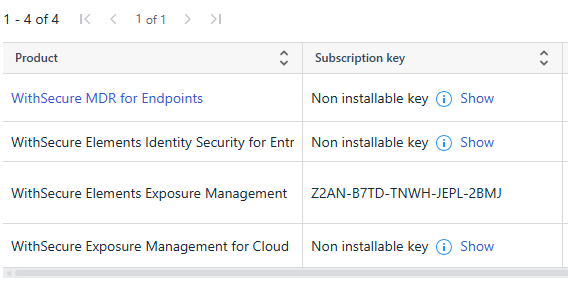
A non-installable key identifies a cloud or managed service entitlement that is not tied to a single asset or endpoint.
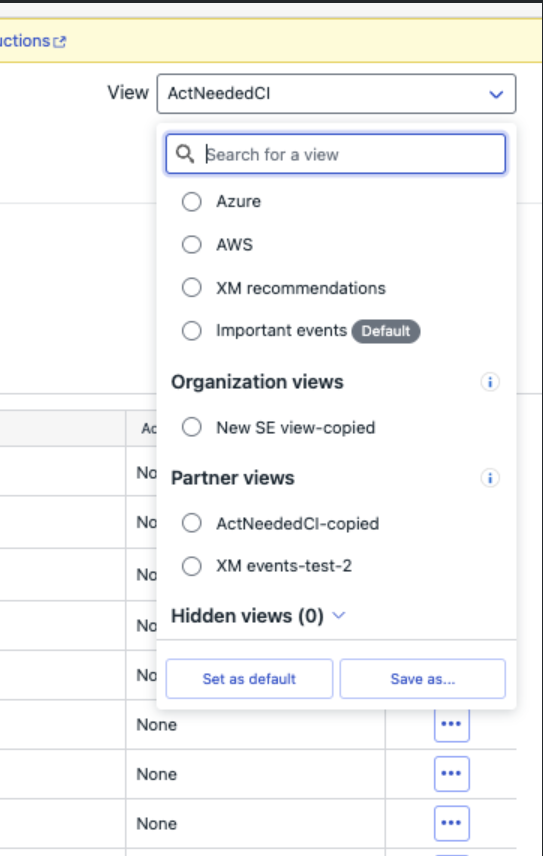
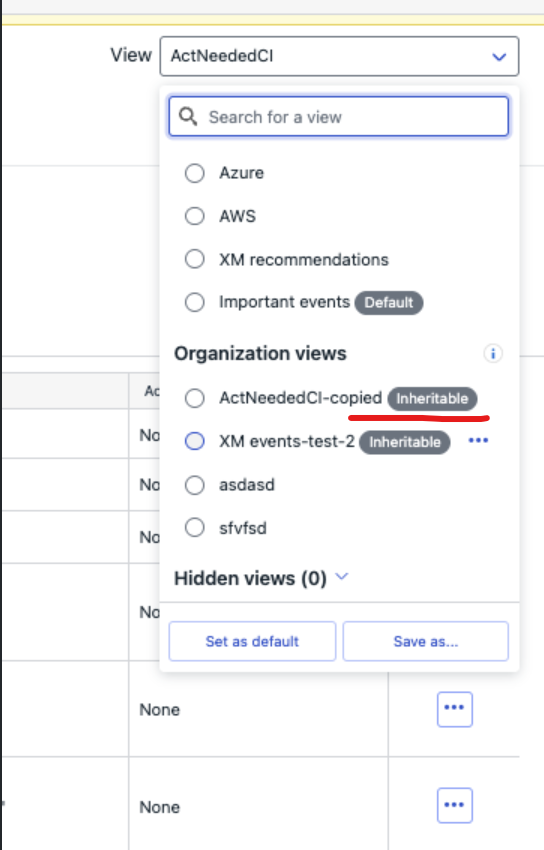
Improvements: Security Events view selector functionality has been expanded:- includes “organization views” (custom view can be copied to Org views)- includes “partner views” (Org views can become “inheritable view” and be shared to all companies of SOP)
Share your ideas with us
Our purpose is to co-secure the world with you – now as WithSecure™. To co-create the best possible cyber security products and services, we warmly recommend you share your ideas via the Ideas section of the WithSecure Community, now accessible directly from WithSecure™ Elements Security Center.
Further information
Changelogs and Release Notes for all parts of WithSecure™ Elements can be found at the Help Center
-
XM Authenticated scanning using SSH on Microsoft Windows
Read more
We recently released support for Exposure Management Authenticated Scanning on Windows, using SSH.
Here we will explain the steps needed to ensure your Windows host can be connected to via SSH.
This article applies to the following:
- Windows Server 2019
- Windows Server 2022
- Windows Server 2025
- Windows 10 / Windows 11 (optional)
Enabling SSH
To allow secure remote access to a windows device, the SSH service must be enabled.
Windows Server supports SSH through the built-in OpenSSH Server feature, which allows encrypted remote connections and command-line access. [learn.microsoft.com]
Follow the steps below to install and enable SSH on Windows Server.
1. Verify OpenSSH Server availability
Open PowerShell as Administrator and run:
Get-WindowsCapability -Online | Where-Object Name -like 'OpenSSH.Server*'- If the state is “Installed”, skip to step 3.
- If the state is “NotPresent”, proceed with installation.
2. Install OpenSSH Server
Run the following PowerShell command:
Add-WindowsCapability -Online -Name OpenSSH.Server~~~~0.0.1.0This installs the built-in OpenSSH Server component available in modern Windows versions.
3. Start and enable the SSH service
After installation, start the SSH service from PowerShell:
Start-Service sshdSet it to start automatically at system startup:
Set-Service -Name sshd -StartupType AutomaticThis ensures SSH remains available after reboot.
Allow SSH traffic in Windows Firewall
To allow inbound SSH connections (default port 22), create a firewall rule using PowerShell:
New-NetFirewallRule -Name "OpenSSH-Server" `-DisplayName "OpenSSH Server (sshd)" `-Enabled True `-Direction Inbound `-Protocol TCP `-Action Allow `-LocalPort 22This enables remote systems to connect via SSH.
Verify the SSH service
Check the service status from PowerShell:
Get-Service -Name sshd- Status should be Running
Test SSH connectivity
From a remote machine, connect using the following from a command prompt:
ssh <username>@<server-ip>Example:
ssh administrator@192.168.1.10Key-based authentication (recommended)
It is strongly recommended to use Key-based authentication instead of passwords, this is more secure in the long term.
Generate your private/public key pair as usual or by using instructions in step 1 Key-based authentication (recommended) | Radar | 4.0 | WithSecure User Guides
Append your public key to C:\ProgramData\ssh\administrators_authorized_keys file.
Note: standard users use personal C:\Users\username\.ssh\authorized_keys file, but for administrator permissions, global administrators_authorized_keys file is used.
Verify that the correct key is present, and the file is formatted correctly.
ssh-keygen -l -f "C:\ProgramData\ssh\administrators_authorized_keys"Note: A very common mistake is using invalid line ending characters. Please make sure only Linux line endings “\n” are used.
Make sure file has correct permissions set
icacls "C:\ProgramData\ssh\administrators_authorized_keys"Should only show two entries:
NT AUTHORITY\SYSTEM:(F)BUILTIN\Administrators:(F)
Verify that key authentication works
ssh –i <private_key> <username>@<server-ip>Example:
ssh –i .ssh/id_ecdsa administrator@192.168.1.10Additional notes
- OpenSSH Server is included as a built-in feature starting from Windows Server 2019 and later.
- SSH uses encrypted communication to protect data integrity and prevent eavesdropping.
- The default SSH port is TCP 22, which must be allowed through firewall configuration.
-
System Maintenance: Upgrade of RBAC Access Control System database
Read more
On Sun 7th June 2026, 18:00 UTC we are planning to upgrade RBAC Access Control System database in the production WithSecure Elements environment.
Access control system will be running in read-only mode for up to 2 hours:
- Changes in the Security Administrators view will not have any effect. All changes will be delayed and applied after upgrade has finished
- Access Control View (participants of RBAC pilot only) will be available in read-only mode – any change in role assignments, users and security groups will not be possible
Other parts and features or the Elements Security Center are not affected
Security (cloud) services, agents (clients), and APIs are not affected during this maintenance break.
We recommend that Users should plan and execute urgent access control changes prior to the upgrade window.
-
Guidance for using the Elements API and the Security Events endpoint
Read more
We have observed that some of our partners and customers are calling the Security Events endpoint of the Elements API, requesting several years of event data.
This can cause an increased data processing load for the API consumer, and will also affect them in the longer term. Read on for more details.
This is creating an abnormal load on our API, which can be impactful to both WithSecure and our other customers.
Facts
- Older Security Events are never updated, so if you have retrieved them once there is no need to retrieve them again. Retrieving them again incurs bandwidth usage and processing cycles both for you and for WithSecure.
- We have a limitation of 30 days of Security Events per request, although this is not currently enforced. From the documentation on Security Events, we have the following:
persistenceTimestampStart
date-timeLower bound for persistence timestamp in the returned security events. Minimum allowed value is 2022-08-01T00:00:01Z.
The time range between persistenceTimestampStart and persistenceTimestampEnd must be no longer than 30 days.
persistenceTimestampEnd
date-timeUpper exclusive bound for persistence timestamp in the returned security events.
The time range between persistenceTimestampStart
and persistenceTimestampEnd must be no longer than 30 days.
Recommendations
- Only collect the full range of events once and store them for future use
- Only request a maximum of 30 days of events per request
- If you need to request 90 days of data, you can make 3 requests for 30 days each
Recommended Polling Pattern for Integrations (SIEM, Data Lakes, etc.)
For integrations that continuously ingest Security Events (e.g., SIEM pipelines), we strongly recommend using an incremental polling approach:
- Poll the Security Events endpoint at a regular interval (e.g., every 5–15 minutes).
- In each poll, request only new or updated events since your last successful request by using the persistenceTimestampStart parameter.
- Maintain a checkpoint (e.g., last seen persistenceTimestamp) in your system to ensure continuity between requests.
Example pattern:
Initial fetch:
- Retrieve a historical dataset once (e.g., last 30–90 days, split into 30-day windows).
- Store the latest persistenceTimestamp from the response.
On subsequent polls:
- Use the stored timestamp as persistenceTimestampStart
- Set persistenceTimestampEnd to the current time
- Retrieve only newly available events
Future Changes
We will start enforcing the 30 day limitation per request starting from September 7th 2026.
-
New Feature: Dark Mode in Elements Portal
Read more
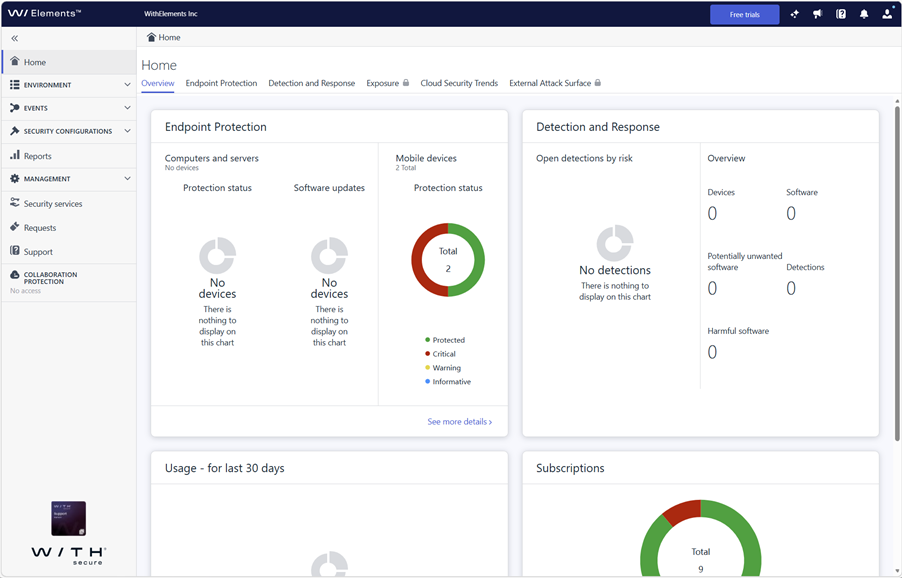
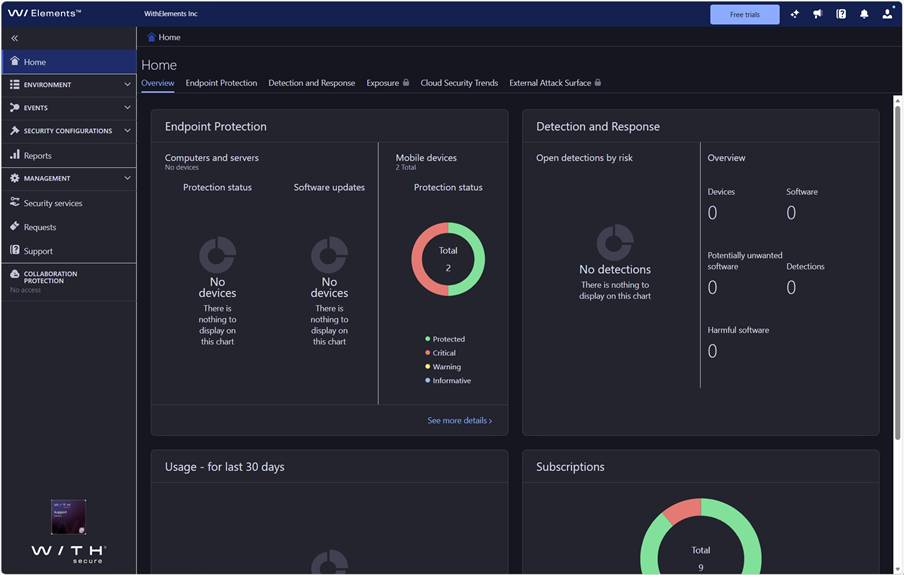
We are happy to introduce Dark Mode in the Elements portal. This much-requested feature gives users a more comfortable viewing experience in low-light environments, supports work in control rooms and during night shifts, and offers another way to personalize the interface based on individual preference.
Background
Dark Mode has been one of the most requested improvements for the Elements portal for some time. Many users spend long periods in the portal in environments where bright interfaces can be distracting or tiring, especially in control rooms or during work in darker settings. With this update, the interface can now be viewed in a darker color scheme that feels easier on the eyes while keeping the familiar Elements experience.
What does this change for you?
Dark Mode gives you more flexibility in how you use the Elements portal. You can switch to a darker interface when working in low lighting, when monitoring activity in control room setups, or whenever you simply prefer a darker visual style. The goal is to make everyday use more comfortable without changing how you navigate or use the product.
How to get started
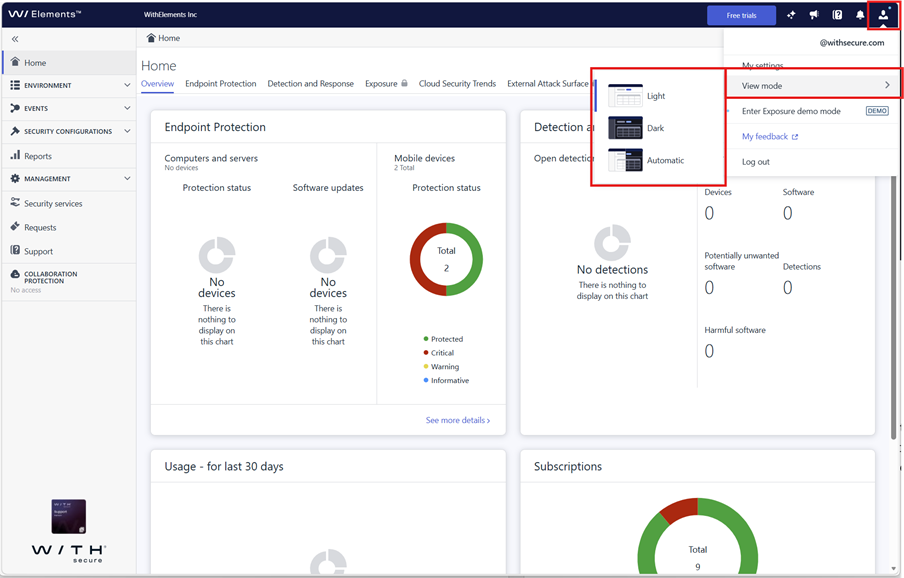
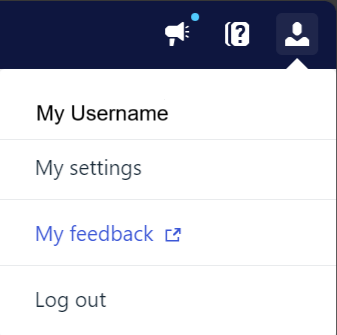
Getting started is simple. Open your user profile menu in the Elements portal and use the selector to switch between Light Mode and Dark Mode. The change takes effect directly in the portal, making it easy to choose the view that works best for your environment and personal preference.